Video on Your Website: The Complete Guide

You finally got video on your website. The film turned out great — but now the page takes several seconds to load, and on mobile, visitors scroll straight past the landscape player without pressing play. Sound familiar?
The problem is rarely the video itself. It’s how it was added. With 67% of web traffic coming from mobile, your choice of format, player and loading strategy matters as much as the content — and that’s exactly what this guide is about.
Gobi Stories is a Norwegian platform for vertical employee video: employees film themselves on their own phones, Gobi edits automatically and publishes the stories as lightweight, vertical 9:16 videos on websites, career pages and job listings. But this is not a sales page. What follows is an honest walkthrough of every common way to put video on your website — with the pros and cons of each.
Why video on your website pays off
Video does something text and images can’t: it shows real people, real workplaces and real atmosphere. Visitors who watch video stay longer, understand your offering better and remember more — whether the video sits on your homepage, a product page or your career page.
The effect is measurable: career pages with employee video keep visitors around 50% longer than pages without.
But the payoff isn’t automatic. A poorly embedded video can drag down load time, user experience and rankings. The rest of this guide is about adding video to your website without paying that price.
Choose the right format: landscape or vertical (9:16)?
Most guides jump straight to the technical part. But the most important decision comes first: which format should the video be in?
Landscape 16:9 video was designed for TV and desktop screens. Vertical 9:16 video is the phone’s native format: it fills the entire screen with no black bars, and nobody has to rotate their phone. When two out of three visitors arrive on mobile, short, vertical video in 9:16 format is the natural starting point for most company websites.
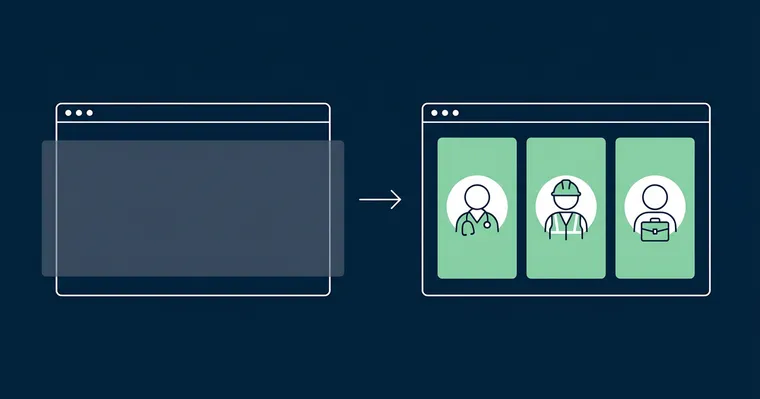
The format choice is also a production choice. A landscape “hero film” usually requires a film crew, a script and an editing suite — and often ends up as one heavy file meant to last two years. A vertical story requires an employee, a phone and two minutes. It can be swapped out at any time, loads light, and looks like the content people already know from social media.
Landscape still has its place: product demos, webinars and longer presentations watched primarily on desktop work well in 16:9. But for short videos meant to build trust — people telling, showing and recommending — vertical wins.
How to add video to your website: the four most common methods
There are four common ways to add video to a website: upload the file yourself using the HTML <video> element, embed a YouTube or Vimeo player with an iframe, use the built-in video block in your CMS or applicant tracking system, or use a lightweight story widget that loads video via an async script. Which method is right depends on what you’re showing — and how much control you want over speed, privacy and appearance.
First, a quick definition. To “embed” a video means building it into your own website so it plays right there — without sending visitors off to another platform. In practice, you paste a small code snippet into your HTML or CMS, and that snippet fetches the video from wherever it’s stored. Paste a YouTube link into WordPress and a player appears in your article: you’ve embedded a video, without writing a single line of code.
1. Self-hosted video with the <video> tag
You upload the video file to your own server and display it with the HTML <video> element.
Pros: Full control over the player and its appearance. No third parties, no cookies, no one else’s logo.
Cons: You have to compress and export the right formats yourself, and your server has to deliver video data to everyone who presses play. Without adaptive streaming, you risk stuttering playback on mobile networks. Best if your files are short and you have technical expertise in-house.
2. YouTube or Vimeo embed (iframe)
You upload the video to YouTube or Vimeo and paste in their embed code.
Pros: Free or cheap hosting, a familiar player, nothing to maintain — and adaptive streaming included.
Cons: The iframe brings heavy scripts that load even if nobody presses play. The standard YouTube embed sets third-party cookies, which requires a consent banner before playback. And when the video ends, YouTube recommends other videos — in the worst case, your competitor’s. The format is also landscape.
3. Video block in your CMS or applicant tracking system
WordPress, Webflow, Squarespace and most applicant tracking systems have built-in video blocks.
Pros: No code, quick to set up, and it works with the system you already have.
Cons: Under the hood, the block is usually one of the two methods above — with the same drawbacks. Control over performance, format and appearance varies between systems.
4. Lightweight story widget with an async script
A newer category, built for short, vertical videos: widgets like Gobi Player load with a small asynchronous script and only fetch the video when someone clicks.
Pros: Doesn’t block the page, vertical 9:16 format, and no third-party cookies — the stories play without a consent banner.
Cons: Suited to short, vertical stories — not hour-long webinars. And you’re tying yourself to a vendor, just as you do with YouTube.
Autoplay, sound and good manners
Some rules for video on websites are unwritten — others are actually written down in WCAG, the accessibility guidelines.
Autoplay only when muted. Nobody likes a website that suddenly starts talking. Browsers generally block autoplay with sound anyway, so a video that starts by itself must be muted. Let users turn on the sound themselves.
Never hijack the scroll. Videos that expand, shift content or lock the screen while the user tries to scroll past create irritation — not engagement.
Caption everything. Many people watch video without sound, especially on mobile. Captions make the video accessible to everyone, including the hearing impaired — and they work: captioned videos are watched 12% longer on average (Gobi Stories customer data).
Give the user control. WCAG 2.1 requires, among other things, that automatically moving content can be paused or stopped. A player with clear controls is both good manners and good accessibility.
Don’t let the video wreck your load time
The most common mistake with video on a website isn’t visible in the design — it’s visible in the metrics. A heavy embed can drag down Core Web Vitals, Google’s page speed metrics, and with them both user experience and search rankings.
Fortunately, the fixes are simple:
- Load on demand (lazy loading). Video further down the page doesn’t need to load until the user scrolls there. For iframes,
loading="lazy"often does the job. - Use a poster image. Show a lightweight preview image and only fetch the actual video when someone presses play. This also reserves the space, so the content doesn’t jump.
- Load scripts asynchronously. Player scripts should load with
asyncordefer, so they don’t block the rest of the page. - Never auto-load video data. The video file is the heaviest element on the page — it shouldn’t load until someone actually wants to watch it.
- Measure before and after. Run the page through PageSpeed Insights before and after adding the video — then you know what the embed actually costs.
Gobi Player is built on these principles: the script loads asynchronously, the bubbles show lightweight thumbnails, and video data is only fetched on click. How it works in detail — and how much the script weighs — is covered in Does Gobi affect your page load time?
You don’t need a film crew: film it yourself on your phone
Here’s the most important insight in this guide: the video that performs best on a company website is rarely the most expensive one. It’s a real employee talking to the camera, filmed vertically on their own phone. Not a polished corporate film, and not an AI avatar — people notice the difference, and it’s precisely the realness that builds trust.
“We replaced a heavy hero film on our front page with three short, vertical employee stories filmed on a phone. The page got faster — and for the first time, we saw people actually playing the videos on mobile.”
This is what Gobi is built for. Employees film themselves on their phones — Autopilot sends the invitations and handles consent, Studio edits automatically with captions, and Gobi Player publishes the stories as lightweight, vertical 9:16 videos on your website. The result is a steady stream of real video content at a fraction of the cost of traditional production — no film crew, and nothing for IT to worry about.
Frequently asked questions about video on your website
How do I add video to my website?
You can add video to your website in four ways: upload the file yourself with the <video> tag, embed a YouTube or Vimeo player with an iframe, use your CMS’s built-in video block, or use a lightweight story widget with an async script. For short, vertical videos, a story widget is the simplest and lightest option; for long presentations, YouTube or Vimeo is often the most practical.
Should video on a website autoplay?
Only when muted. Browsers generally block autoplay with sound, and visitors find it intrusive. A muted video with captions and a clear sound button is a good compromise: it catches attention without annoying anyone.
Does video make a website slower?
It can — but it doesn’t have to. Heavy iframes and video data that loads automatically drag speed down. With lazy loading, async scripts, poster images and video that’s only fetched on click, the impact on load time is minimal.
Which video format is best for websites?
Vertical 9:16 is best for short videos watched on mobile, where the majority of traffic comes from. Landscape 16:9 suits webinars, product demos and longer content watched primarily on desktop. If you host the file yourself, MP4 (H.264) is the safest file format.
Do I need cookie consent for video on my website?
It depends on the player. The standard YouTube embed sets third-party cookies and requires consent before playback. Self-hosted video and cookie-free players like Gobi Player play immediately, with no consent banner.
Adding video to your website is easy. Adding video that people actually watch on mobile — without slowing your site down — takes three deliberate choices: vertical format, lightweight loading and real content.
Want the shortest path there? Read the practical guide How to embed Gobi Stories on your website, see how Gobi Player works — or, once the video is in place, where on the page it should go. And website video doesn’t have to be about recruitment: customer videos build the same trust with buyers that employee stories build with candidates.