
Teamtailor
Integration guide
Add stories to job postings
Show employee videos directly in each job posting in Teamtailor.
Check that Custom DNS is enabled
To use "Custom HTML and CSS" blocks in Teamtailor, Custom DNS must be enabled for your account. Contact Teamtailor support if you're unsure whether this is set up.
Create a story in Gobi Studio
Go to studio.gobistories.com and log in. Create a new story, upload short videos and/or images, and publish it.
Add the Gobi script in Teamtailor
Log in to Teamtailor with a user that has the "Company Admin" role. Click "Content" in the top menu, then the paintbrush icon to edit global design. Scroll down to "Custom Javascript" and paste the script code. Click "Save" and then "Publish".
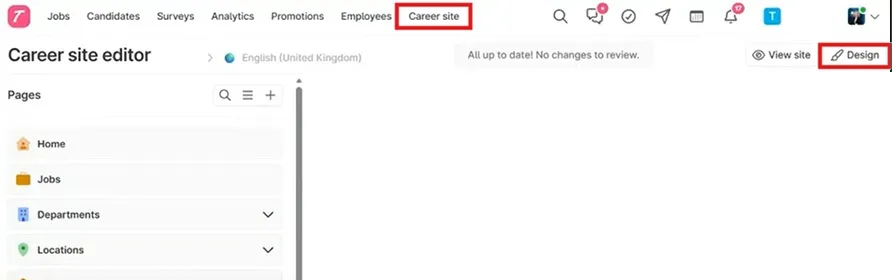
Customise the code in Gobi Studio
Go to "Website" in the side menu in Gobi Studio. Click "Choose stories to embed", select the stories and customise the appearance of the bubbles. Click "Add to Site", select the code style "Gobi Discover Classes" and copy only the div code — not the script tag.
Open code mode in the job posting
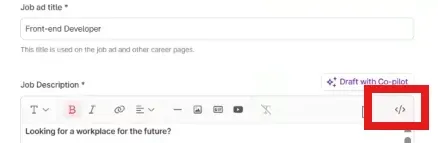
Go to the job posting you want to edit in Teamtailor. In the "Job Description" editor, click the "</>" icon in the toolbar to open code mode.
Paste the code and publish
Paste the div code from Gobi Studio into the source code. Click "</>" again to return to the normal view, and publish the job posting.
Did it work?
Let us know if you got it working, or if you need some help.