At the top of the company profile
Add story IDs straight to the company card, and the employee videos appear at the top of the profile — the first thing job seekers see.
Create a story in Gobi Studio
Go to studio.gobistories.com and log in. Create a new story with short, vertical 9:16 videos of the people who work with you, and publish it. Skip this if the story already exists.
💡 Jobbi requires a Gobi subscription to show stories. If you don't have one yet, get in touch with us.
Copy the story ID
Open the story in Gobi Studio. The story ID is the short code after "ID:" next to the title, e.g. "5ztbk". Click it to copy it. You can also use "Copy ID" in the menu on the story card under "Stories".
Open your company profile in Jobbi
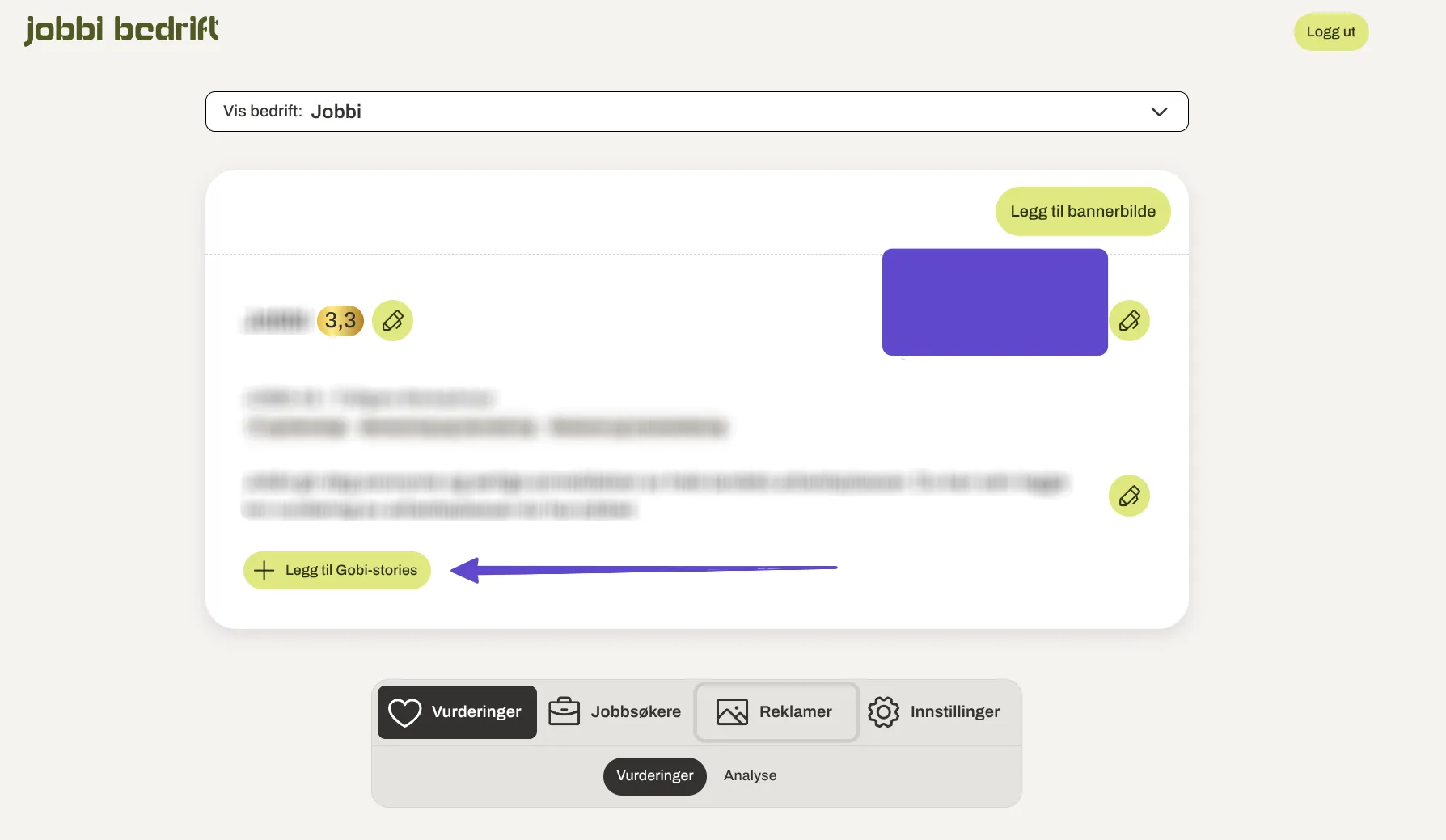
Log in at bedrift.jobbi.no. Under the "Vurderinger" (Reviews) tab you'll see the company card with name, logo and description. Click "Legg til Gobi-stories" (Add Gobi stories) at the bottom of the card.
💡 If you manage several companies, pick the right one in the "Vis bedrift" menu at the top first.
Paste the story ID and save
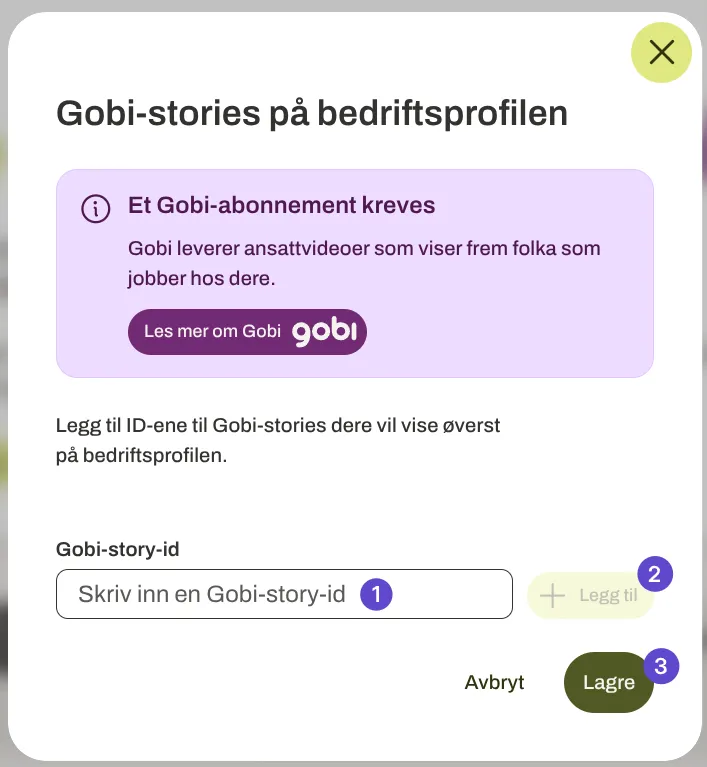
In the dialog that opens, paste the story ID into the "Gobi-story-id" field and click "Legg til" (Add). Repeat for more stories if you like. Click "Lagre" (Save) to finish.
💡 You can add several story IDs — they show side by side at the top of the profile.
Done — stories show on the profile
The employee videos now sit at the top of your company profile on Jobbi. Open the profile the way a job seeker sees it to check that everything looks right.
💡 If you edit the story in Gobi Studio, it updates automatically on Jobbi.
In the "About us" section
Build a dedicated Gobi story section in "About us", where you decide its placement among images, text and video.
Create a story in Gobi Studio
Go to studio.gobistories.com and log in. Create a new story with short, vertical 9:16 videos of the people who work with you, and publish it. Skip this if the story already exists.
💡 Jobbi requires a Gobi subscription to show stories. If you don't have one yet, get in touch with us.
Copy the story ID
Open the story in Gobi Studio. The story ID is the short code after "ID:" next to the title, e.g. "5ztbk". Click it to copy it. You can also use "Copy ID" in the menu on the story card under "Stories".
Go to "Om oss" in settings
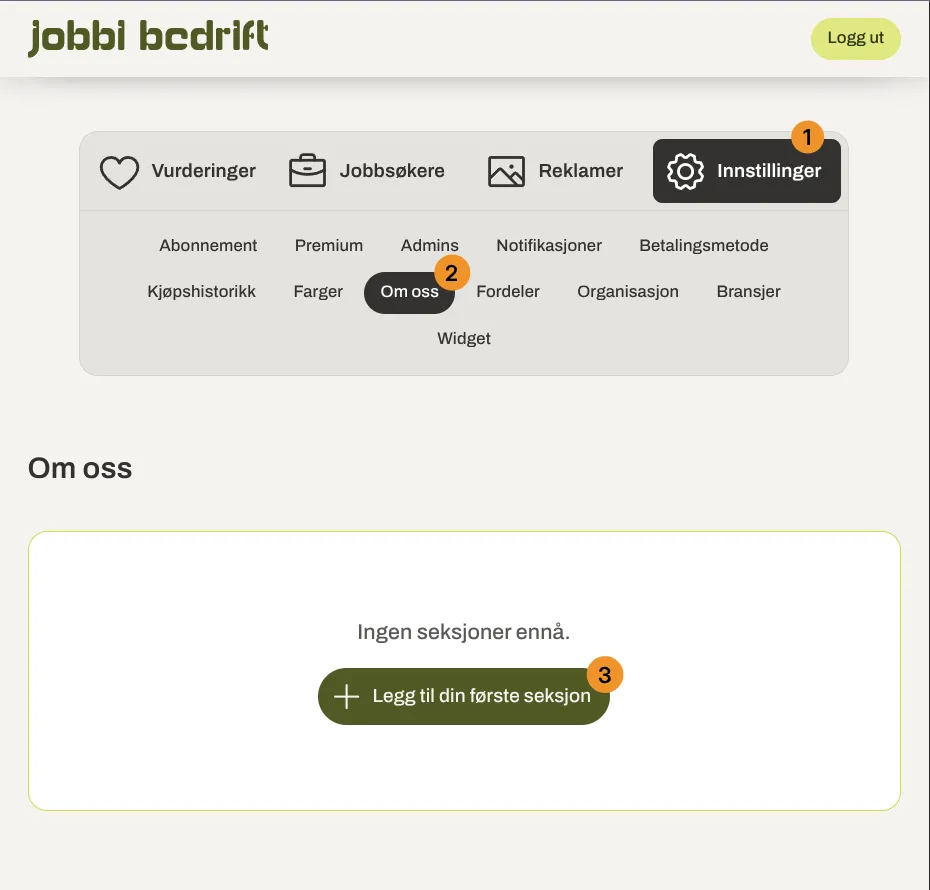
Log in at bedrift.jobbi.no. Click "Innstillinger" (Settings) in the menu, then choose "Om oss" (About us). Click "Legg til din første seksjon" (Add your first section) — or the "+" button if you already have sections.
Choose the "Gobi-story" section type
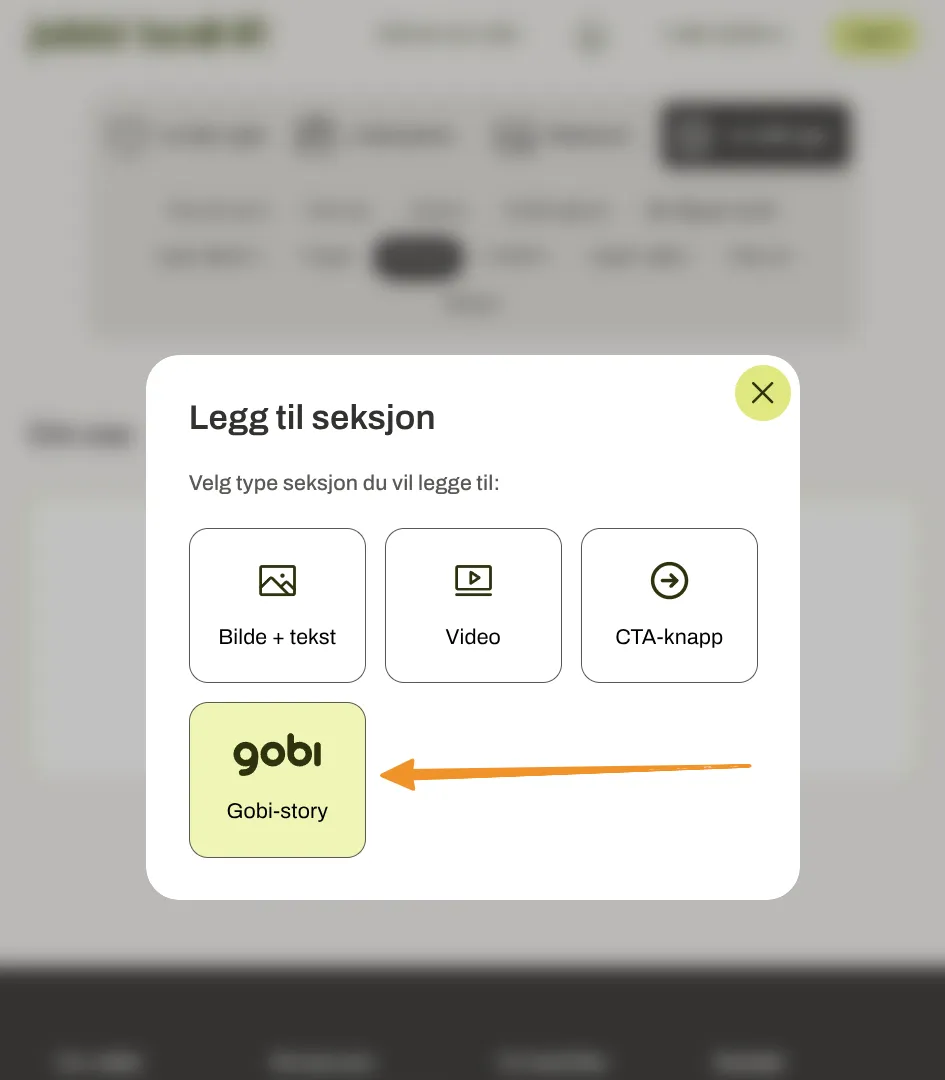
In the "Legg til seksjon" (Add section) dialog, pick "Gobi-story" — the card with the Gobi logo.
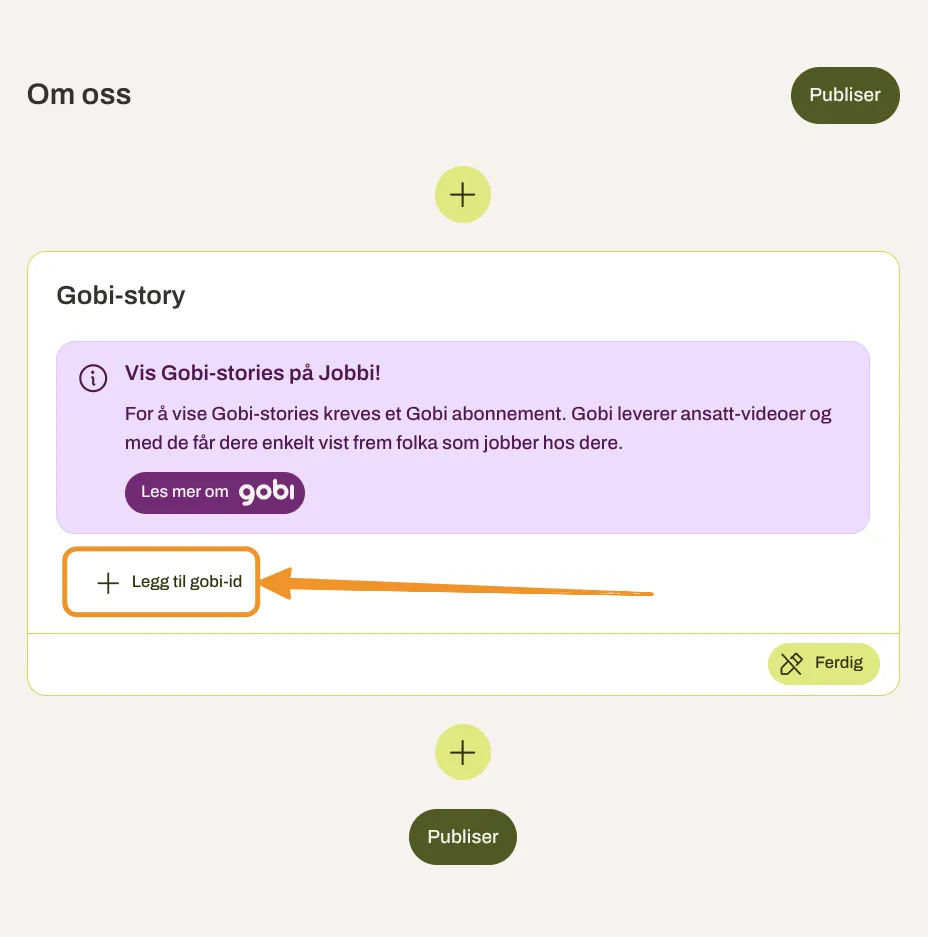
Click "Legg til gobi-id"
A new Gobi story section appears in "Om oss". Click "Legg til gobi-id" (Add Gobi ID) to open the field where you paste the story ID.
Paste the story ID and publish
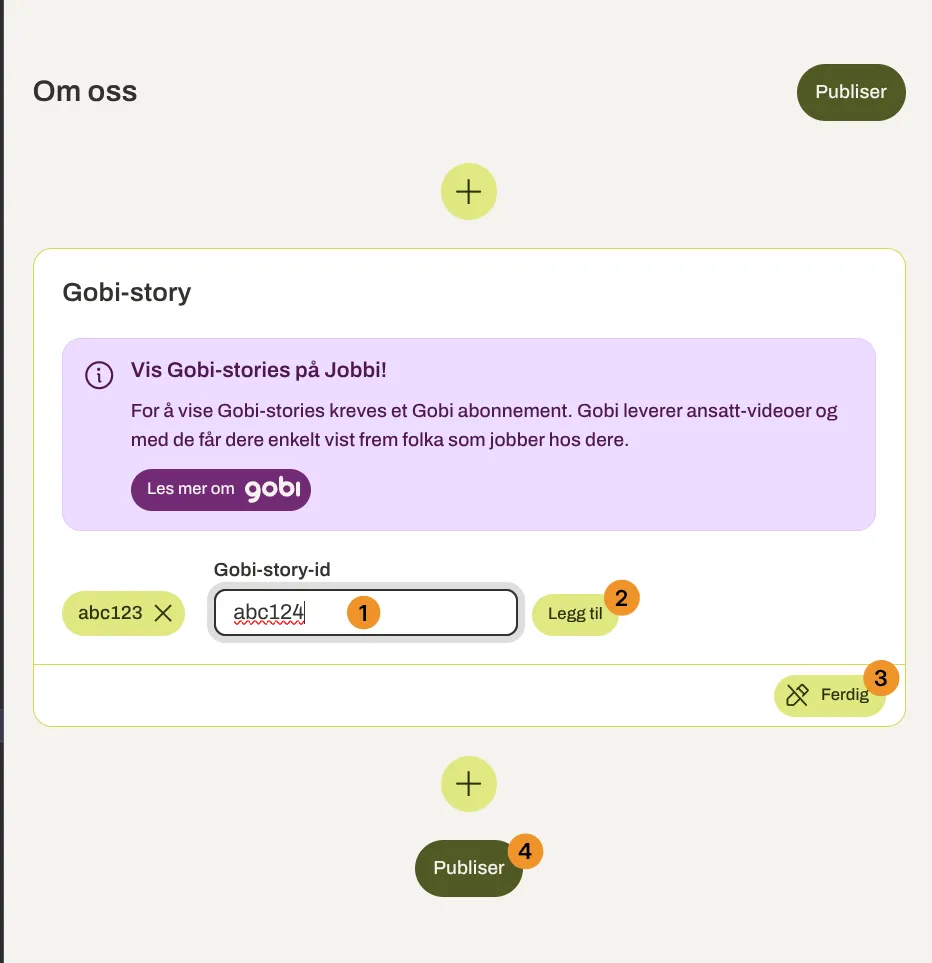
Paste the story ID into the "Gobi-story-id" field and click "Legg til" (Add). Add more if you like. Click "Ferdig" (Done) on the section, then "Publiser" (Publish) to make the change visible.
💡 Remember "Publiser" — the section isn't visible to job seekers until you publish.