
Webcruiter
Integration guide
Add stories to job postings
Show employee videos in Webcruiter job postings using the built-in Gobi field — no code required.
Create a story in Gobi Studio
Go to studio.gobistories.com and log in. Create a new story with short videos and/or images, and publish it.
Find the Story ID
Open the story in the Gobi Studio editor. The Story ID is shown after "ID:" next to the title at the top of the editor — click it to copy. You can also use "Copy ID" in the menu on the story card under "Stories".
Select "Story in ad" in Webcruiter
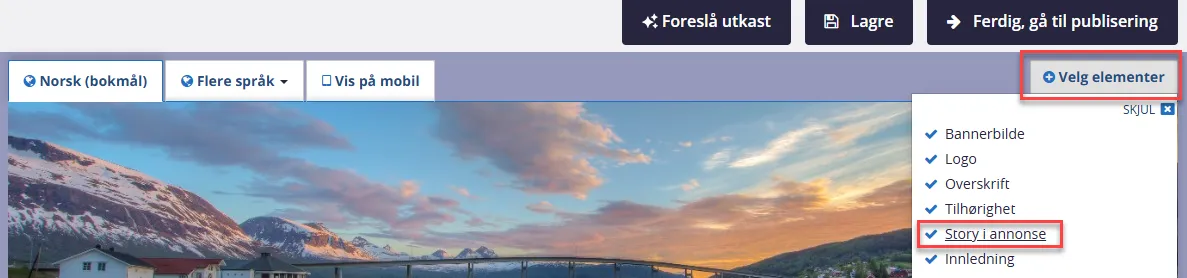
Open the job posting you want to edit in Webcruiter. Click "Select elements" in the toolbar and check "Story in ad".
Click "Add"
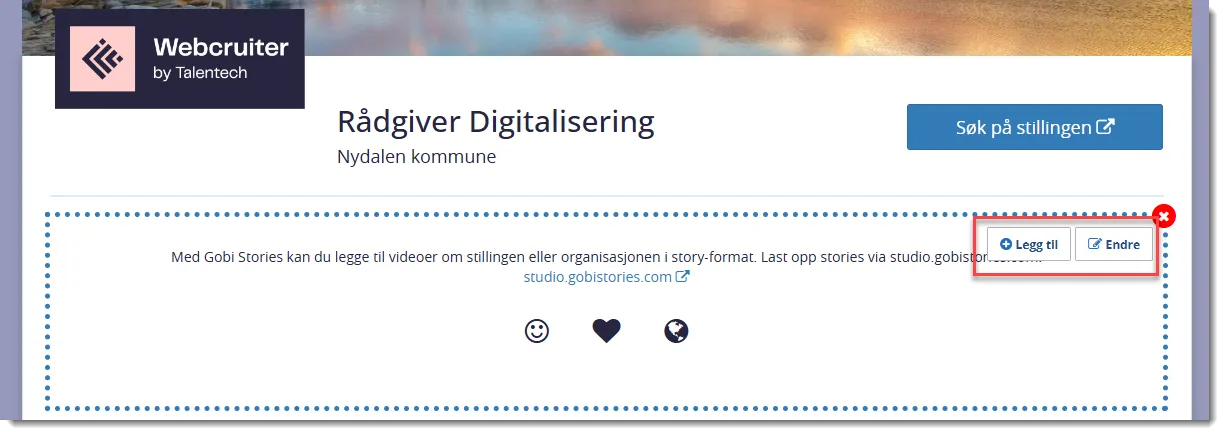
The story element now appears in the posting. Click the "Add" button to add a video.
Enter the Story ID and description
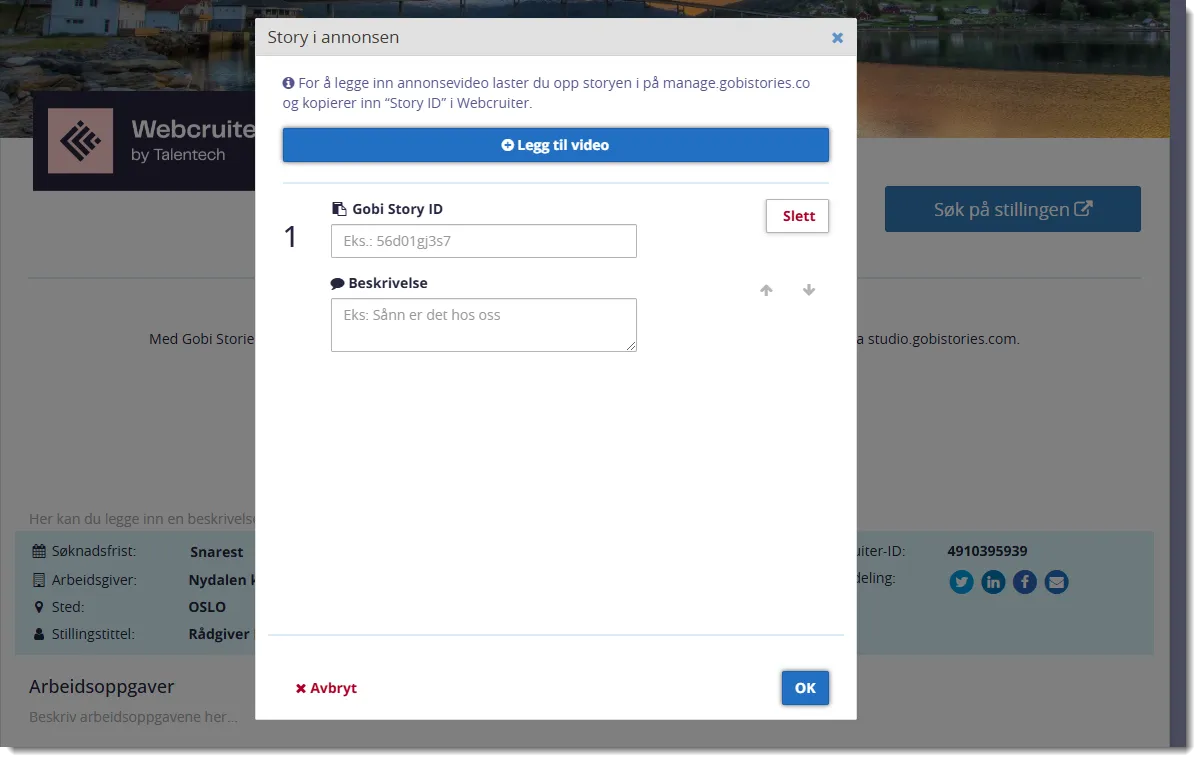
In the dialog that opens, paste the Story ID into the "Gobi Story ID" field. Optionally add a description, e.g. "This is what it's like working here!". Click "OK".
Did it work?
Let us know if you got it working, or if you need some help.