
ReachMee
Integration guide
approx. 5 min 4 steps
Add stories to job postings
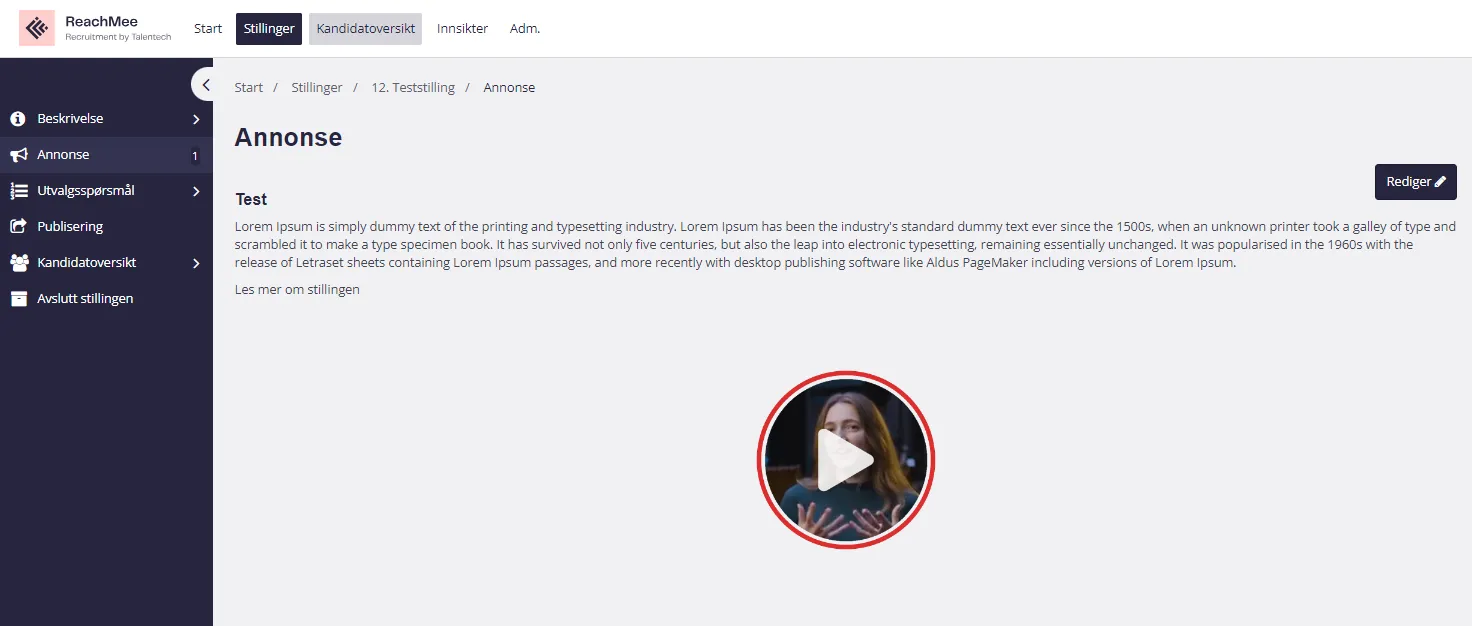
Show employee videos in ReachMee job postings by pasting Gobi code into the source code.
1
Create a story in Gobi Studio
Go to studio.gobistories.com and log in. Create a new story with short videos and/or images, and publish it.
2
Customise the bubble and copy the code
Go to "Email" in the side menu in Gobi Studio. Click "Choose a story to send", select the story you want to use and customise the bubble appearance — colour, size, animation, and whether to show a play icon. When you're happy, click "Send" and then "Copy code".
💡 ReachMee uses the email code because the job posting has limited HTML support.
3
Open the position in ReachMee
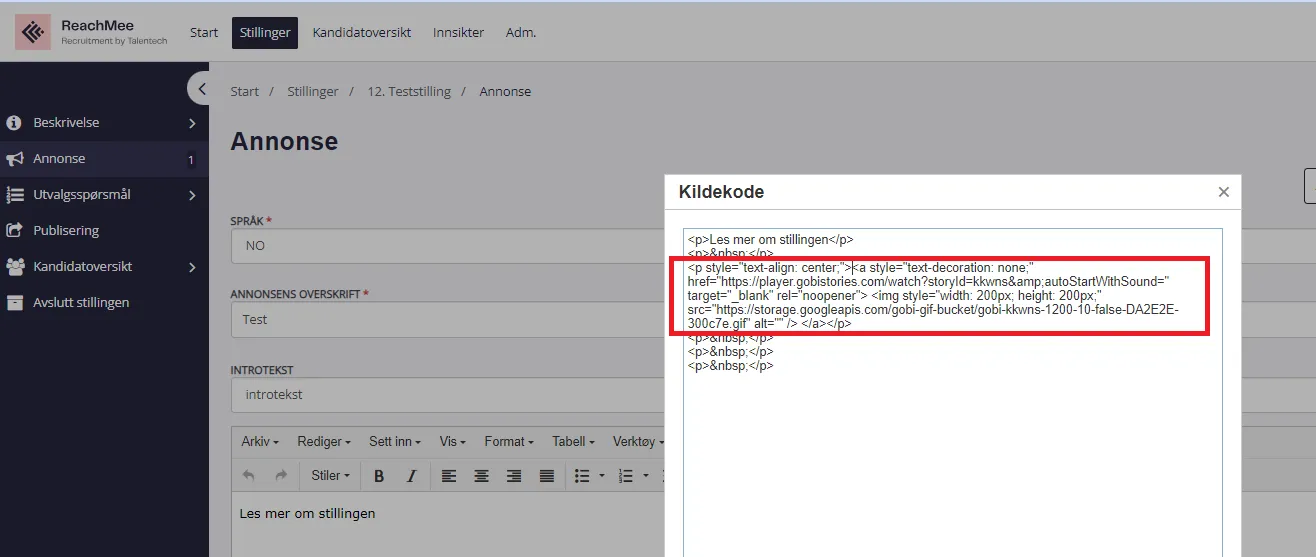
Log in to ReachMee, open the job posting for editing, and go to "Tools" → "Source code" in the text editor.
4
Paste the code into the posting
Paste the HTML code from step 2 into the source code at the desired position in the posting text.
💡 To adjust the size, change the width and height values in the code (e.g. 200px). Increase "Size (pixel)" in Gobi Studio if the image quality looks poor.
🎉
Did it work?
Let us know if you got it working, or if you need some help.